

Hardware compatibility issues don’t announce themselves. They show up at the worst possible time — during a live demo, a store launch, or a client handover. I’ve seen it happen more times than I can count. A system that ran perfectly in the lab fails the moment it hits a real environment. That’s the gap nobody talks about enough.
What I keep seeing is that most failures aren’t random. They follow patterns. Either the hardware depends on something external that nobody accounted for, or a software state gets triggered that nobody on-site knows how to reverse. Both scenarios are preventable. But only if you know what to look for before the deployment truck pulls out of the warehouse.
This article breaks down two of the most common — and most frustrating — hardware compatibility failures we hear about from system integrators and distributors. We’ll look at what goes wrong, why it happens, and what you can actually do about it. According to Statista, the global self-service kiosk market is growing fast. That means more deployments, and more chances for these problems to surface.
The Kiosk Mode Trap: When a Software Quirk Becomes a Hardware Crisis

Here’s the thing about KIOSK mode — it’s a feature that makes total sense in context. Lock down the UI, hide system menus, keep the end user focused. Great in theory. But when it activates by accident, it turns into a nightmare.
We’ve had multiple reports of ArkOS devices getting stuck in KIOSK mode after an unintentional Konami code input. For those unfamiliar — up, up, down, down, left, right, left, right, B, A. It’s a classic cheat code sequence that was embedded as a hidden trigger. On a touch-enabled or controller-mapped device, it’s surprisingly easy to activate by mistake.
Once it’s triggered, the settings menu disappears. Pressing Start does nothing. The operator is locked out of system settings entirely. And if nobody on-site knows the exit sequence, the device effectively becomes a brick until someone with deeper system knowledge gets involved.
What makes this worse is that the exit method varies by hardware model. On the R36Plus, the sequence works one way. On the R36H, you need the right joystick. That inconsistency alone causes panic. The operator tries the same steps on both units and gets different results. They assume the hardware is faulty. In my experience, that’s usually when someone reaches for the factory reset option — which solves the problem but costs you all your configuration work.
For system integrators deploying self-service kiosk hardware, this is a documentation and training problem as much as a hardware problem. Every device you deploy should ship with a one-page quick reference. It should cover: how KIOSK mode gets triggered, how to exit it on that specific model, and who to call if neither works. Keep it simple. Laminate it and zip-tie it to the cable bundle if you have to.
The NRF’s retail technology research consistently flags operator training gaps as a top contributor to technology deployment failures. This is a textbook example of why.
Standalone Dependency: The Demo Unit That Only Works on Its Pedestal

This one frustrates me more than almost anything else in commercial hardware. You have a display unit — in this case, a Super Nintendo demo unit — that works perfectly when it’s sitting in its dedicated display stand. Move it three feet to a different location, and it stops working entirely.
The reason is almost always power or signal dependency. The stand isn’t just a stand. It’s carrying power. It’s routing signal. It may be handling some portion of the AV processing. The device was never designed to operate independently. It just looks like it should.
For retail deployments, this is a serious problem. Floor plans change. Clients move displays around. Pop-up events require flexibility. If your demo unit can only function when it’s locked into one physical configuration, you’re going to have a bad day eventually. Usually in front of a client.
According to IHL Group, retailers are increasingly demanding hardware flexibility as store formats continue to evolve. Fixed-dependency hardware is falling out of favor for exactly this reason. Integrators who spec it without flagging the limitation are setting themselves up for support calls they didn’t expect.
The fix isn’t always a hardware swap. Sometimes it’s documentation and expectation-setting. If the unit requires the stand, say so clearly — in the spec sheet, in the deployment guide, in the sales conversation. But ideally, you source hardware that can run standalone. Carry its own power. Drive its own output. Operate without a proprietary cradle.
This is one of the key criteria we apply when evaluating POS hardware and display units for commercial deployments. Standalone operation isn’t optional. It’s a baseline requirement.
Comparing Deployment Risk: Dependency vs. Standalone Hardware
Not all hardware dependencies are equal. Some are manageable. Some will end your deployment before it starts. Here’s a quick breakdown of how dependency types affect real-world deployment risk.
| Dependency Type | Risk Level | Common Impact | Mitigation |
|---|---|---|---|
| Power via proprietary stand | High | Unit fails when relocated | Specify standalone power input at sourcing stage |
| Signal routed through base unit | High | No output without stand | Verify direct AV output ports on device itself |
| Hidden software mode trigger | Medium | Operator lockout, system inaccessible | Document trigger and exit sequence per model |
| Model-specific control mapping | Medium | Inconsistent operator experience across units | Standardize hardware models per deployment site |
The pattern here is clear. High-risk dependencies involve physical infrastructure. Medium-risk ones involve software behavior. Both are solvable — but only if you identify them before the hardware ships.
What System Integrators Should Do Before Any Hardware Deployment
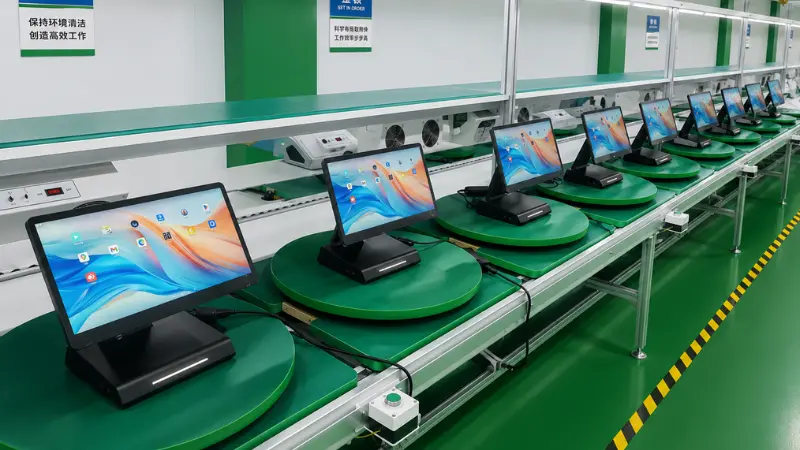
In my experience, most compatibility failures are discovered too late. Not because they’re hard to find — because nobody looked. Integrators are under time pressure. Hardware gets staged, configured, and shipped without a proper standalone test.
Here’s what a solid pre-deployment check should include.
Test the unit off its base
Unplug everything except what the end user will have. If it stops working, that’s your answer. You need different hardware or a different setup.
Intentionally trigger edge cases
For kiosk or controller-based systems, try unexpected input sequences. You want to find KIOSK mode before your client does. Same goes for any hidden diagnostic or test modes. Know where they are.
Document model-specific behaviors
If you’re deploying multiple hardware models, list the differences. Especially control sequences, reset procedures, and any mode-switching behavior. Make it part of your handover package.
Train the first-line contact on-site
Not a full technician — just whoever is going to be standing next to the hardware day-to-day. Give them the one-page reference. Walk them through the most likely failure scenarios.
Reliable Deployments Start Before Hardware Reaches the Field
Hardware reliability isn’t just about the hardware. It’s about how well you understand it before it goes into the field. That’s where good integrators separate themselves from the rest.
RBR’s industry research consistently shows that post-deployment support costs are one of the biggest margin killers for integrators. Most of those costs trace back to problems that were present at deployment and just never surfaced until a bad moment.
For kiosk systems and POS hardware, compatibility testing should not be treated as an extra step. It is a key part of a successful deployment process. The more devices, software layers, and integration points involved, the more important it becomes to work with reliable hardware and experienced partners.
Have a specific compatibility question or project requirement?
Hardware compatibility in retail technology isn’t getting simpler. More devices, more software layers, more integration points. What I keep seeing is that the integrators who do well are the ones who treat compatibility testing as a core competency — not an afterthought. The problems described here are not unusual. They’re common. And they’re preventable with the right process and the right hardware partners.
Explore the full range of commercial hardware at SwiftForce Electronic Technology — built for real-world deployments, not just spec sheets. Have a specific compatibility question or a project you’re scoping? Contact our team directly and let’s work through it together.