
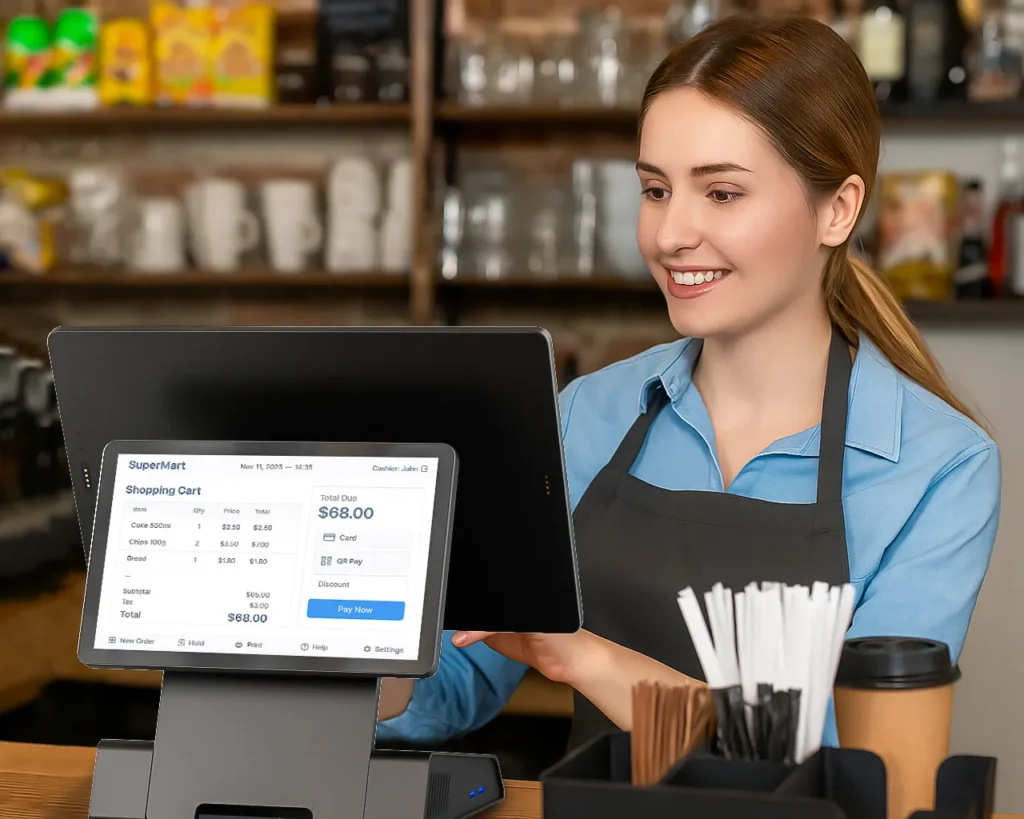
The POS terminal is the busiest piece of hardware in a restaurant. It takes every order, sends tickets to the kitchen, drives the cash drawer and receipt printer, and often faces the guest through a second screen. A terminal that freezes during a Friday rush, runs out of ports or stops getting updates costs far more than its purchase price.
This guide is written for restaurant owners, POS software companies and system integrators who are choosing POS hardware, not POS software. It walks through the questions we ask every customer before we build a terminal, in the order they usually matter.
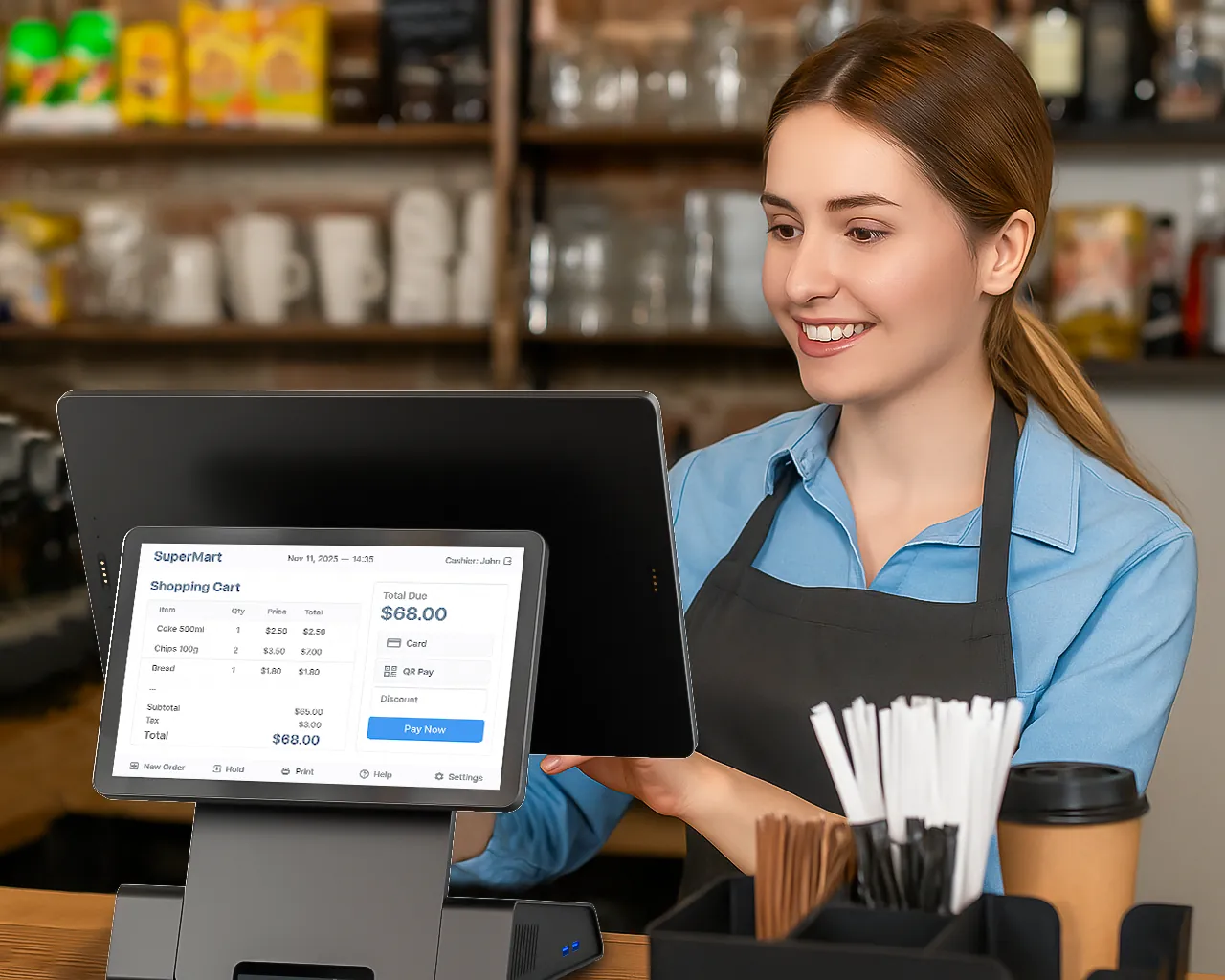
Quick checklist
- Software first: confirm which operating system and processor your POS app supports.
- Screen: 15.6″ for most counters; 11.6″–14″ for small counters and bars.
- Customer display: do guests need to see the order, tip or a QR code?
- Ports: count every printer, scanner, scale and cash drawer you will connect, then add one.
- Cooling: fanless designs handle grease, dust and steam better.
- Kitchen: plan the kitchen display (KDS) at the same time as the front counter.
- Life cycle: ask how long the model and its board will stay in production.
- Support: warranty, spare parts and who you call when a unit fails.
1. Start with your POS software, not the hardware
Your POS app decides most of the hardware choices. Before you compare terminals, get clear answers to three questions from your software provider:
- Which operating system? Most modern restaurant apps run on Android. Some older or more complex systems need Windows.
- Which Android or Windows version? An app tested on Android 11 may not be certified on Android 14 yet, and the reverse.
- Which peripherals and drivers are supported? Printers, cash drawers and payment devices often need specific drivers or connection types.
If you are on Windows, check the version carefully. Microsoft ended support for Windows 10 on October 14, 2025, so new deployments should plan for Windows 11 or a supported long-term edition (Microsoft: Windows 10 end of support).
2. Choose the processor for the workload, not the spec sheet
A restaurant POS rarely needs desktop-class power, but it does need to stay responsive with the app, a payment service and a kitchen connection all running at once. As a rough guide:
| Board | Typical OS | Good for |
|---|---|---|
| Rockchip RK3568 | Android 11 | Cafés, quick-service counters, single-screen setups |
| Rockchip RK3576 | Android 14 | Busier counters, dual-screen setups, newer Android apps |
| Intel N95 | Windows 10 / 11 | Windows POS software, back-office tasks at the counter |
| Intel Core i5 | Windows | Heavier Windows software, multi-window workflows |
Memory matters as much as the processor. For Android, 4 GB RAM is a sensible minimum for a restaurant app; choose 8 GB if you run a customer display with video or promotions. For Windows, start at 8 GB.
3. Screen size, brightness and touch
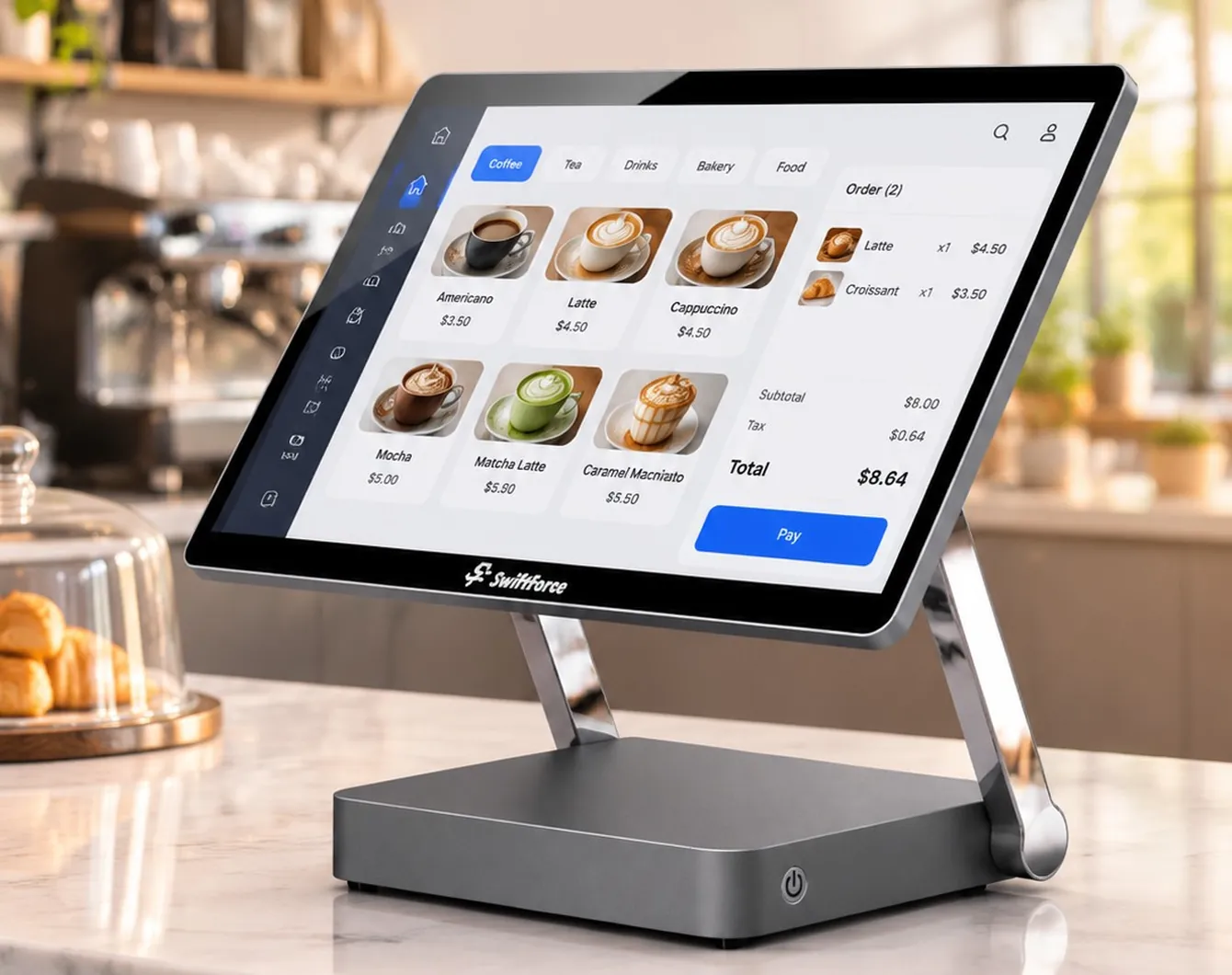
15.6 inches is the most common size for a restaurant counter. It shows a full menu grid with large buttons, which reduces mistakes when staff are moving fast. Smaller screens (11.6″–14″) suit bars, kiosks-in-a-corner and food trucks where counter space is tight.
Look for a true-flat capacitive touch screen. A flat glass front has no edge where crumbs and sauce collect, and it is easy to wipe down between shifts. Full HD (1920 × 1080) keeps small text such as modifiers readable.
4. Decide early on a customer-facing display
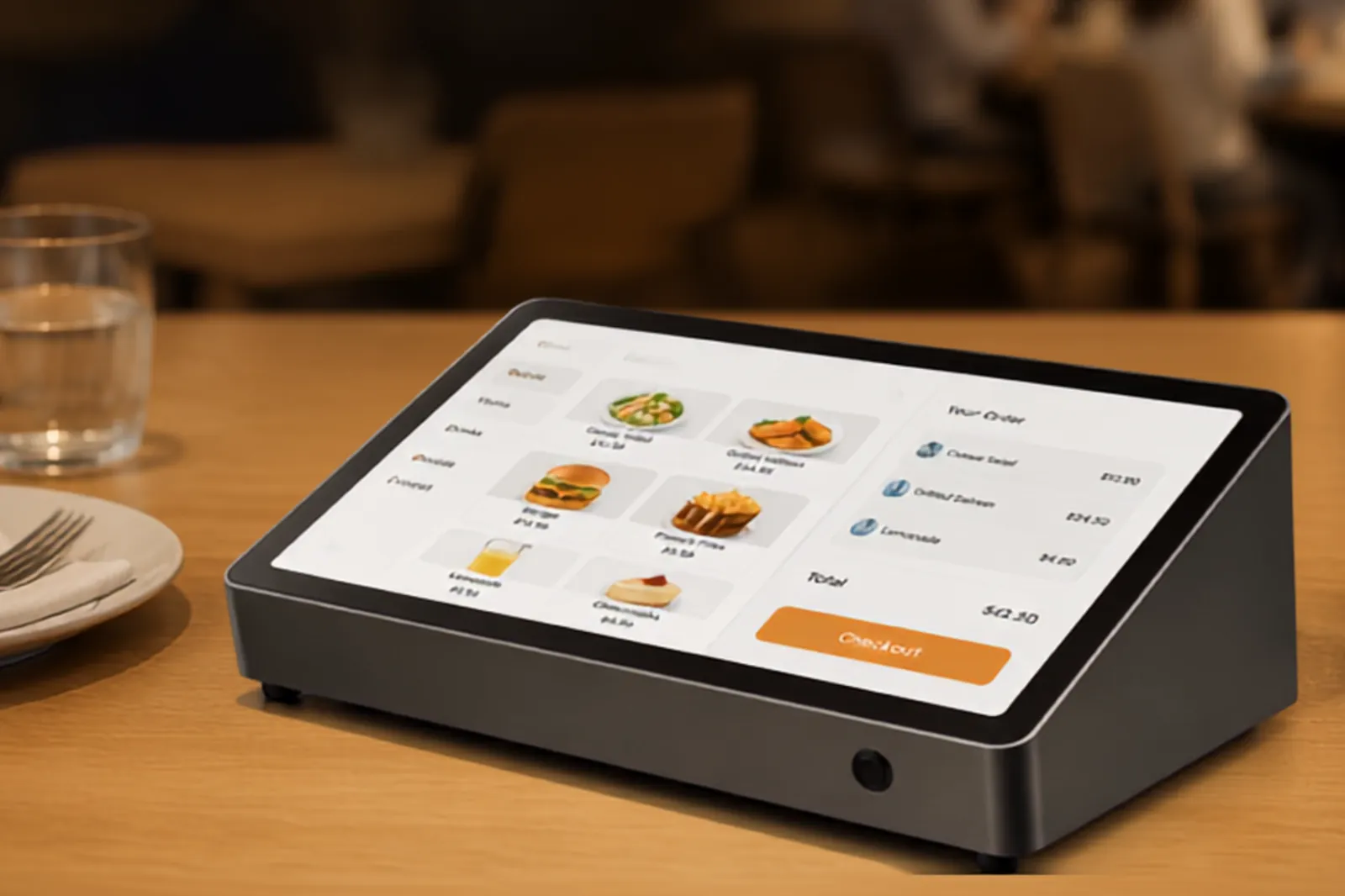
A second screen facing the guest shows the order as it is entered, the total, a tip prompt or a payment QR code. It cuts disputes at the counter and gives you space for promotions. The usual options are:
- No customer display: lowest cost, fine for table service where the guest never sees the terminal.
- 10.1″ rear display: enough for order lines, totals and a QR code.
- Full-size rear display (same size as the main screen): better for menus, video and promotions.
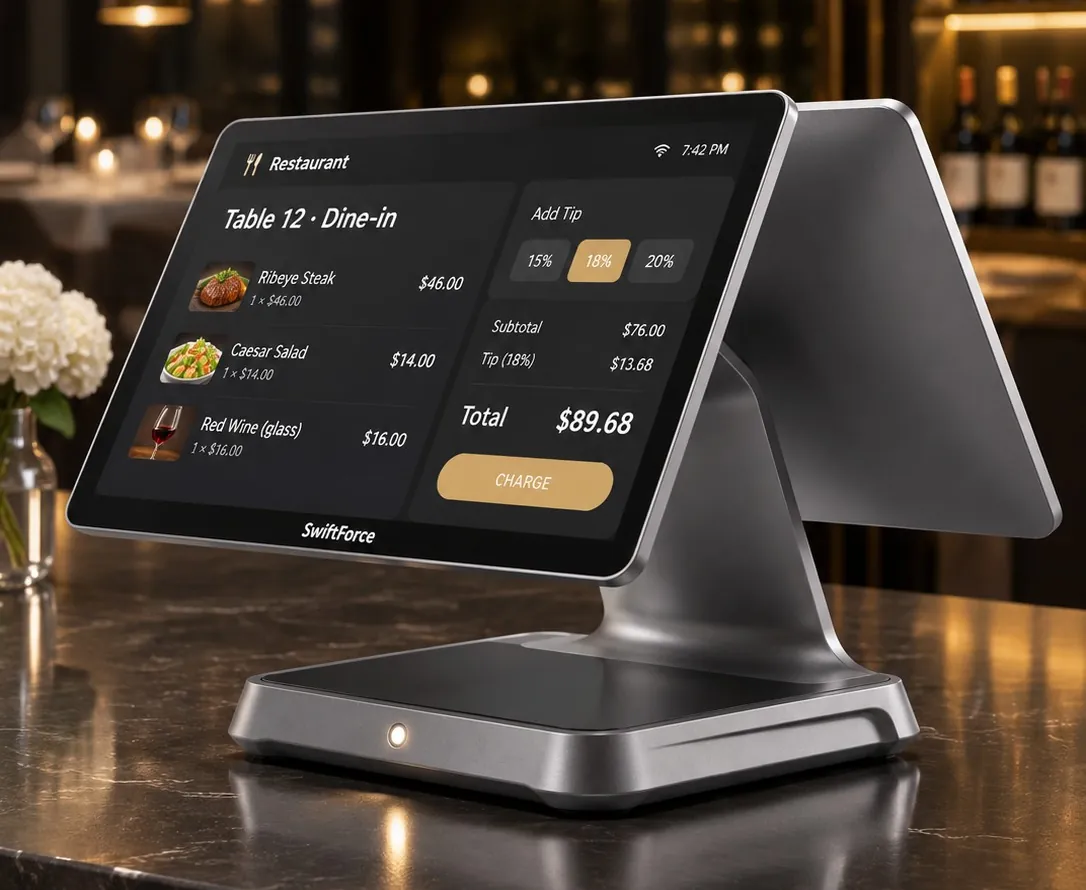
If you supply many sites, a detachable rear display helps: you stock one terminal and add the second screen only where it is needed. Our Eva-X01 was designed around this idea.
5. Count the ports you really need
Running out of ports is one of the most common problems we see after installation. List every device that will connect to the terminal at the counter:
- Receipt printer (USB, serial or LAN)
- Cash drawer (usually an RJ11 port, or driven through the receipt printer)
- Barcode or QR scanner
- Payment terminal (USB or serial, depending on the provider)
- Kitchen printer or kitchen display connection (often over LAN)
- Scale, for bakeries and delis
Then add one spare. Pay attention to serial (RS232) ports if you use older printers or scales, and to wired Ethernet: Wi-Fi is convenient, but a cable connection is more reliable for payments during peak hours. Dual-band Wi-Fi 6 and Bluetooth are useful as a backup and for wireless peripherals.
6. Cooling, cleaning and build quality
Restaurant counters are hard on electronics: grease in the air, steam from the kitchen, flour and sugar dust, and spills. Terminals with cooling fans pull that air through the device, and the fan is often the first part to fail.
A fanless design with an aluminum body moves heat out through the housing instead. It is silent, has no moving parts to wear out and keeps dust out of the board. Ask the supplier how the terminal is cooled and whether it has been tested at the temperatures behind your counter; 0–40 °C operating range is a common specification.
Check the stand as well. A heavy base and a solid hinge keep the screen steady when staff tap hard during a rush. Foldable designs, such as our Eva-C01, fold flat for shipping and storage, which helps if you move terminals between events or sites.
7. Plan the kitchen at the same time
Orders taken at the counter have to reach the kitchen quickly and clearly. Many restaurants now replace paper kitchen tickets with a kitchen display system (KDS): a screen at each station that shows orders, timing and status. If you plan a KDS, choose it together with the front-counter terminals so that both run software that talks to each other, and so the kitchen screens are rated for heat and grease. See our kitchen display screens for the hardware side.
If you also want guests to order by themselves, a self-ordering kiosk can take pressure off the counter at peak times. Again, confirm your POS software supports it first.
8. Security and payments
The POS terminal itself usually does not read cards; that is the job of a separate, certified payment device. But the terminal runs the software that handles orders and talks to the payment service, so it still matters:
- Use an operating system version that still gets security updates. Google publishes monthly Android security bulletins (Android Security Bulletins).
- Follow the PCI Data Security Standard for the systems that touch card data (PCI Security Standards Council). Your payment provider and POS software company will tell you which parts apply to you.
- Ask whether the terminal supports remote device management, so updates and settings can be pushed to every store without a site visit.
9. Life cycle, warranty and spare parts
A restaurant expects a POS terminal to last several years. Before you standardize on a model, ask the manufacturer:
- How long will this model and its main board stay in production?
- If a board is discontinued, will the replacement fit the same housing and run the same software image?
- What is the warranty, and are spare screens, boards and power adapters available?
- What is the standard lead time for repeat orders?
For reference, our standard terminals carry a 1-year warranty and a standard lead time of about one month.
10. Branding and custom builds (for POS companies and distributors)
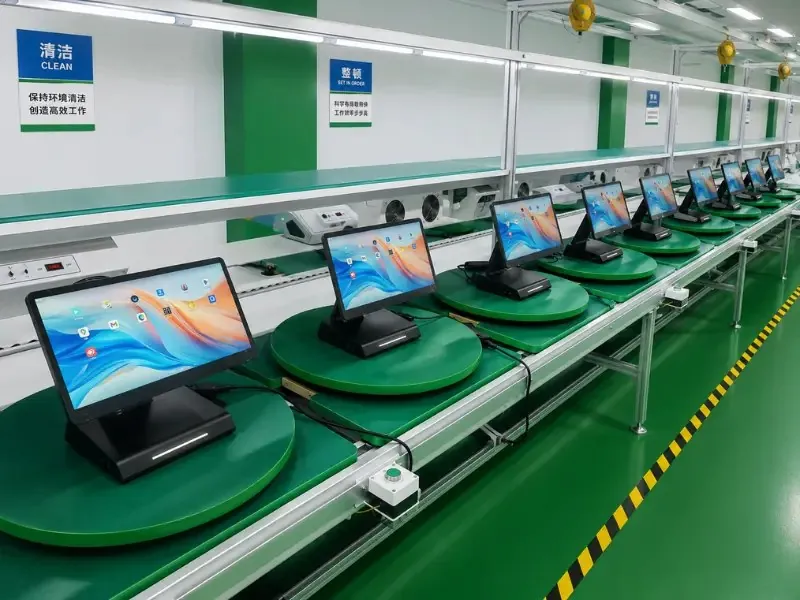
If you sell POS systems under your own brand, working directly with a manufacturer lets you put your logo on the terminal, choose housing colors and pre-install your software image. Typical minimums at SwiftForce are:
- Standard models: samples from 1 unit
- Your logo: from 100 units, or any quantity with a one-time logo setup fee
- Custom housing color: from 100 units
- Custom housing or structure (ODM): from 500 units, with development cost quoted separately
Common mistakes to avoid
- Buying hardware before checking software support. The cheapest terminal is expensive if your app is not certified on it.
- Choosing Wi-Fi only. Keep a wired Ethernet connection for the main counter.
- Forgetting the cash drawer port. Check whether the drawer connects to the terminal or to the printer.
- Ignoring cooling. Fans clog in kitchens; fanless designs last longer.
- Mixing too many models. Standardizing on one or two models makes spare parts and staff training simpler.
Frequently asked questions
What size POS screen is best for a restaurant?
15.6 inches is the most common choice for a main counter because it shows a full menu with large buttons. Smaller 11.6″–14″ screens suit bars, food trucks and small counters.
Should a restaurant POS run Android or Windows?
Choose the system your POS software supports. Most new restaurant apps run on Android, which is usually lower cost; some established systems need Windows.
Do I need a customer-facing display?
It is optional, but it helps at counters: guests can check the order and total, add a tip or scan a payment QR code. A 10.1″ rear display is enough for most counters.
Why does a fanless POS terminal matter in a kitchen environment?
A fan pulls grease, dust and steam into the device and is often the first part to fail. A fanless aluminum terminal is sealed, silent and easier to keep clean.
Can I order POS terminals with my own logo?
Yes. At SwiftForce, logo printing starts from 100 units, or any quantity with a one-time logo setup fee. Samples of standard models start from 1 unit.
Next step
If you are choosing terminals for a restaurant group or for your own POS brand, send us your software, the peripherals you use and your expected quantity. We will suggest a configuration and send a sample quote. See our POS terminals or contact our team.